
Node Management
Scanning nodes execute scanning tasks. This page covers daily operations and status monitoring from the console.
Deploying & Scaling Scanning Probes
If you need to install new probe instances, run multiple nodes, or review sizing recommendations for specialized workloads, refer to: Distributed Deployment.
Node Pool Overview & Real-Time Status
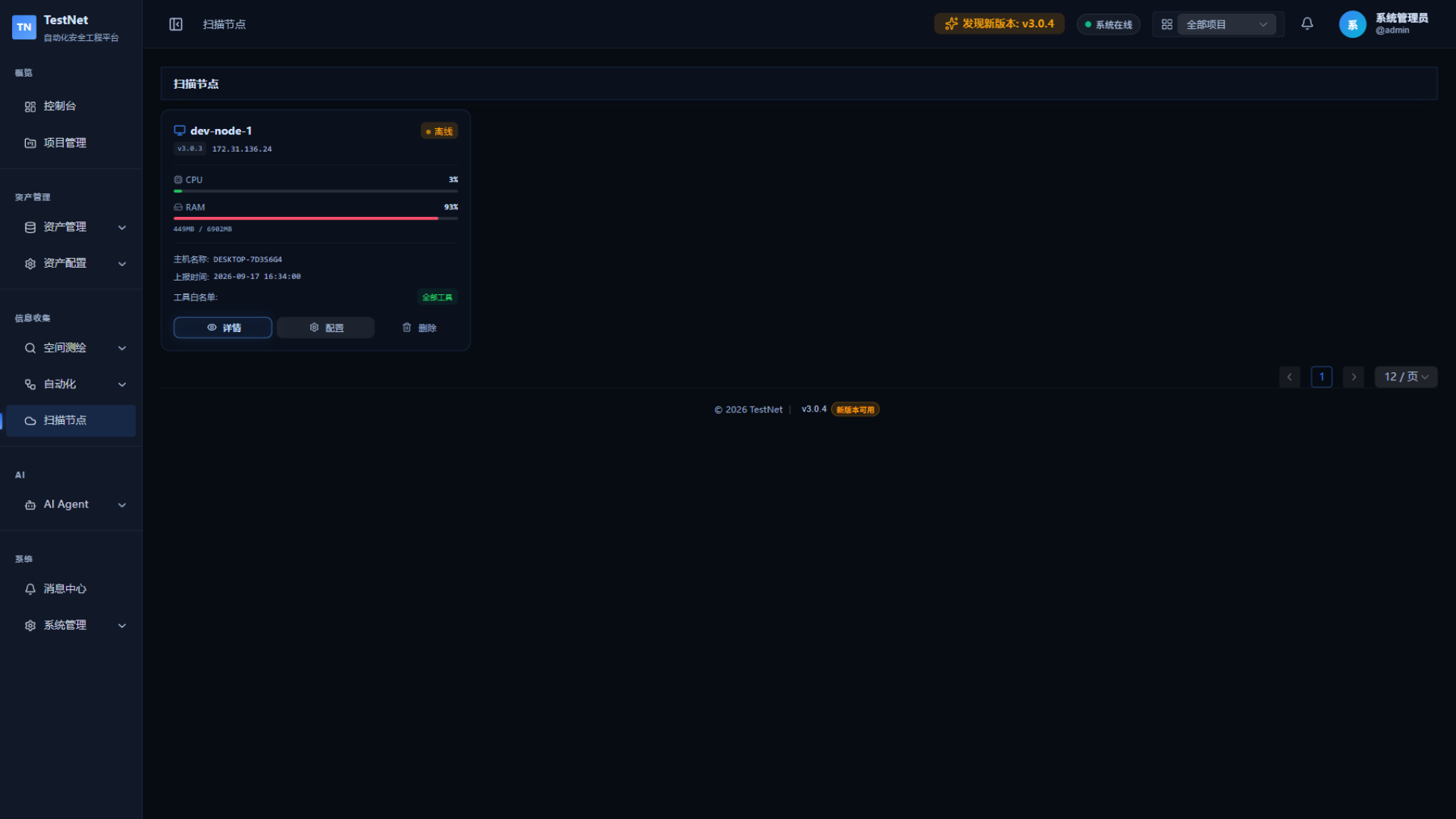
Navigate to Scanning Nodes in the left sidebar to view active worker probes:
| Field | Description | Example |
|---|---|---|
| Node Name | Friendly name configured via TESTNET_NODE_NAME | node-general-01 |
| Node ID | Unique identifier generated upon registration (snowflake ID) | 1932123456789012345 |
| Status | Whether the node can receive tasks | 🟢 Online / 🔴 Offline |
| Last Heartbeat | Time of the last heartbeat | 12 seconds ago |
| Active Tasks | Number of tasks currently running | 3 / 5 |
| System Info | Node OS, kernel, and memory info | Linux x86_64 / 16GB |
Node Status
| Status | Icon | Description |
|---|---|---|
| Online | 🟢 | Node running normally, accepting tasks |
| Offline | 🔴 | No heartbeat for about 3 minutes (180 seconds); marked offline automatically |
Node Operations
View Node Details
Click "Details" on a node card to view:
- System specs (CPU cores & usage, RAM, disk, uptime)
- Network info (IP, MAC address, OS & architecture)
- Tool whitelist (restricted tool list, or "All tools (unrestricted)")
Configure a Node
Click "Configure" to open the node advanced configuration dialog, where you can set:
- Tool execution whitelist: restrict the node to pulling and executing selected tools only (see below)
- Client YAML configuration: push the node's local
config.yaml(executor switches, concurrency, etc.)
Delete a Node
Offline nodes can be deleted (existing task records are preserved):
- Ensure node is offline
- Click "Delete"
- Confirm
TIP
After deletion, restarting the client will auto-register as a new node.
Node Tool Whitelist
By default, any online node can pull and execute every security tool on the platform. A tool whitelist restricts a node to only the tools you explicitly allow, enabling workload separation and capacity isolation.
Checking Whitelist Status
The node card and the Details dialog both show the current whitelist state:
| Tag | Meaning |
|---|---|
N tools | The node is restricted to the N whitelisted tools |
All tools | Unrestricted — the node can run every enabled tool |
Configuring the Whitelist
- Click "Configure" on a node card to open the node advanced configuration dialog
- In the "Tool Execution Whitelist" section at the top, pick the allowed tools in the multi-select box
- Click "Save Configuration" — changes take effect immediately
The selector groups tools by runtime type for quick lookup:
| Group | Tool Types |
|---|---|
| Docker Tools | Containerized scanning tools (Subfinder, Nuclei, Nmap, etc.) |
| HTTP Tools | Native HTTP request probing tools |
| DNS Tools | DNS resolution and lookup tools |
| TCP Tools | TCP port probing tools |
| Shell Tools | Local process / command-line tools |
| Other Tools | Tools without a declared runtime type |
TIP
- Leaving the multi-select empty means unrestricted — the node may run every security tool
- The selector supports keyword filtering; tools are sorted by name within each group
- Once saved, the node only pulls tasks for whitelisted tools; tasks already dispatched are unaffected
Typical Scenarios
- Workload separation: let a bandwidth-rich node run containerized vulnerability scans (Docker tools) only, while internal nodes handle HTTP/TCP probing
- Resource protection: restrict low-spec devices to lightweight DNS/TCP tools so container jobs don't overwhelm the host
- Compliance: pin a node to an approved set of tools only
Execution Capabilities
| Method | Requirements | Description |
|---|---|---|
| Docker | Docker socket mounted | Execute containerized tools (Subfinder, Nuclei, etc.) |
| Shell | Binary installed | Execute local CLI tools (PROCESS type) |
| HTTP | Network accessible | Send HTTP requests |
| DNS | Network accessible | DNS queries |
| TCP | Network accessible | TCP port probing |
Troubleshooting
Node shows offline after registration
- Check network connectivity (can the node reach the server on port 3100, the unified Nginx entry? Port
8081is the direct backend port, available only if you expose it yourself) - Verify
TESTNET_CLIENT_SECRETis correct - View logs:
docker logs testnet-client
Tasks stuck in PENDING
- Check if any nodes are online
- Check server logs to confirm task dispatch is working
Docker tools fail to run
For deeper diagnostics (image ulimit, DNS, SELinux, etc.), see the Troubleshooting Guide and FAQ.
# Verify Docker socket is accessible
docker exec testnet-client docker ps
Client Environment Variables Reference
Client nodes support overriding config.yaml settings via TESTNET_ prefixed environment variables:
| Environment Variable | Type | Description |
|---|---|---|
TESTNET_SERVER_URL | string | Server URL (e.g., http://host:8081 or https://host:3100) |
TESTNET_SERVER_TLS_ENABLED | bool | Enable TLS (true/1) |
TESTNET_SERVER_TLS_INSECURE_SKIP_VERIFY | bool | Skip TLS certificate verification (set true for self-signed certs) |
TESTNET_CLIENT_SECRET | string | Node connection secret (from server .env) |
TESTNET_NODE_NAME | string | Node name |
TESTNET_LOG_LEVEL | string | Log level (debug/info/warn/error) |
TESTNET_MAX_CONCURRENT | int | Max concurrent tasks (default 3) |
TESTNET_POLL_TIMEOUT | duration | Long-poll timeout (default 30s) |
TESTNET_POLL_INTERVAL | duration | Long-poll interval (default 5s) |
TESTNET_HEARTBEAT_INTERVAL | duration | Heartbeat interval (default 30s) |
TESTNET_DOCKER_ENABLED | bool | Enable Docker executor (true/1) |
TESTNET_SERVER_TIMEOUT | duration | Server request timeout (e.g., 30s) |
TESTNET_WORK_DIR | string | Task working directory |
TESTNET_CACHE_DIR | string | Cache directory |
TESTNET_ALLOW_PRIVILEGED | bool | Allow privileged container execution (default true; set false in production) |
TESTNET_ALLOW_SSRF | bool | Allow SSRF probing internal networks (default true; set false in production) |
TESTNET_ALLOWED_VOLUME_PATHS | string | Allowed mount paths (comma-separated; replaces the built-in default list, e.g., /tmp/,/opt/testnet/) |
WARNING
TESTNET_ALLOW_PRIVILEGED and TESTNET_ALLOW_SSRF default to true (allowed). For nodes exposed to untrusted targets or running on office/production networks, always set them to false explicitly. See Node Sandbox & Security Policies.
Related Documentation
- Distributed Deployment — Detailed container deployment, multi-node scaling, and hardware sizing
- Node Sandbox & Security Policies — Process isolation, network protection, and binary whitelist configuration