
Cyberspace Search
TestNet integrates with major internet space search engines, allowing you to query asset information directly within the platform and import results into your asset library.
Supported Engines
| Engine | Description | Website |
|---|---|---|
| FOFA | Chinese internet space mapping, rich query syntax | fofa.info |
| Hunter | QiAnXin Eagle-Eye platform, comprehensive data | hunter.qianxin.com |
| Quake | 360 global internet space mapping | quake.360.net |
| Shodan | International leader, global coverage | shodan.io |
| ZoomEye | Knownsec's internet space radar | zoomeye.org |
| Zone | 0.zone asset mapping platform | 0.zone |
Configure API Keys
Before using search engine features, configure the API Key for each engine.
- Go to "Cyberspace Search" → "Search Config"
- Select the engine to configure
- Enter your API Key (obtain from each engine's official site)
- Click "Save" — the key is stored securely and ready to use in searches
Getting API Keys
- FOFA: Register and get the API Key from your profile page
- Shodan: Register and get the API Key from your account page
- Hunter: Register and get the API credit key from your profile
- Quake: Register a 360 Quake account and apply for the key in your profile center
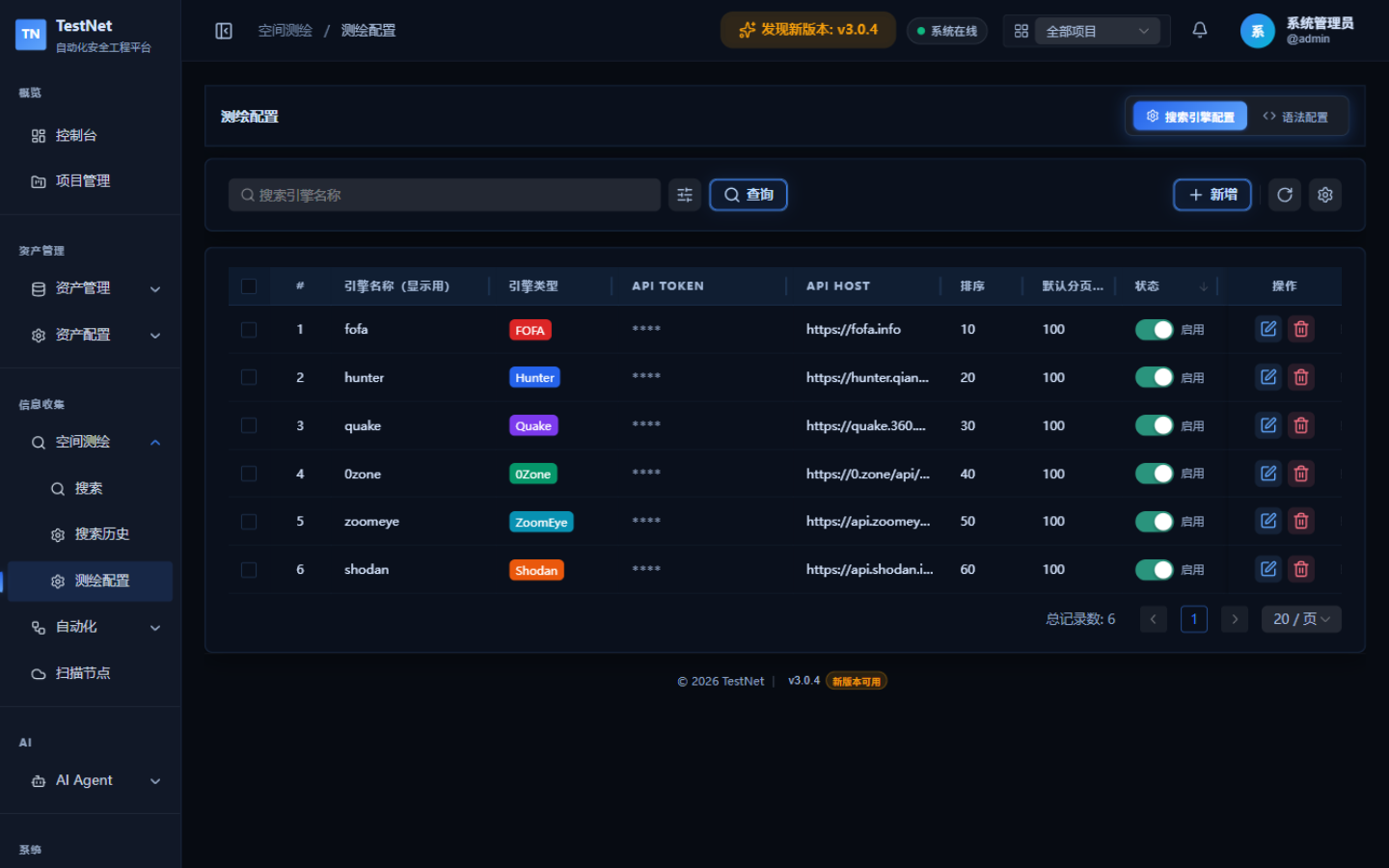
Configure Query Syntax
Different engines have their own query syntaxes. You can preset common query templates in "Cyberspace Search" → "Search Config" for quick access.
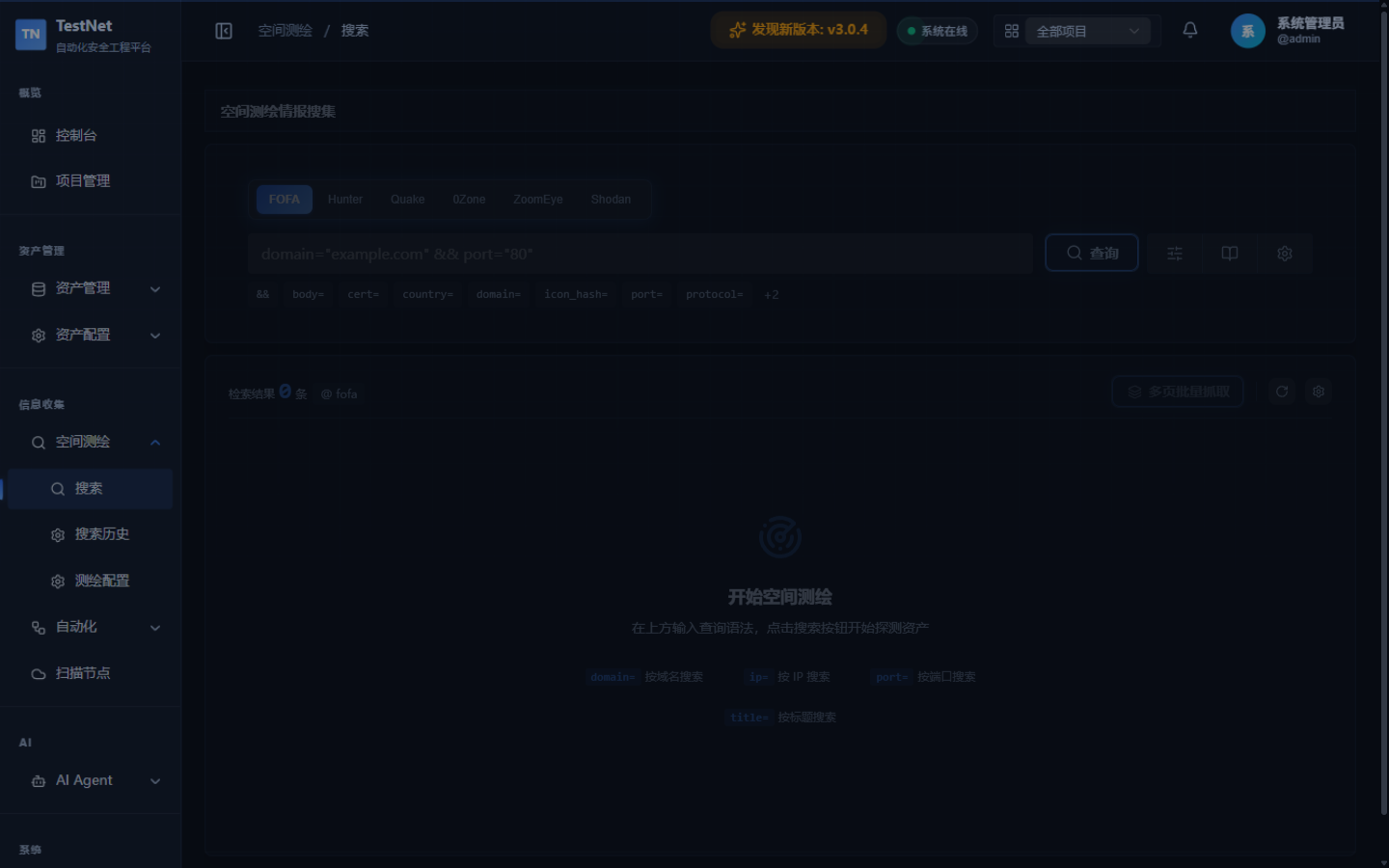
Run a Search
- Go to "Cyberspace Search" → "Search"
- Select a search engine
- Enter the query syntax in the search box
- Set a result count limit (to avoid excessive quota consumption)
- Click "Search"
Syntax Examples
# Search assets by domain
domain="example.com"

# Search an IP range
ip="192.168.1.0/24"

# Multi-condition query
domain="example.com" && status_code="200"

# Search by tech stack
app="WordPress" && domain="example.com"# Search by hostname
hostname:example.com
# Search an IP range
net:192.168.1.0/24
# Search a specific port
port:8080 hostname:example.com
# Search by organization
org:"Example Corp"# Search by domain
site:example.com
# Search by IP
ip:192.168.1.1
# Search by service
service:http hostname:example.com# Search by domain suffix
domain.suffix="example.com"
# Search by IP
ip="192.168.1.1"
# Search by page title
web.title="Example"# Search by domain
domain: "example.com"
# Search by IP / CIDR
ip: "192.168.1.0/24"
# Search by port & service
port: 8080 AND service: "http"# Search by site/domain
site="example.com"
# Search by company name
company="Example Corp"
# Search by web page title
title="Admin Dashboard"Import Search Results
After searching, import results into TestNet's asset library:
- Check the records to import in the result list (select-all applies to the current page; changing page or running a new search clears the selection)
- Click "Import Assets"
- Pick the Target Project the assets will belong to, then click "Confirm Import"
The import job is processed asynchronously in the background and the system confirms submission; created/skipped counters are shown on the batch import progress board.
Search History
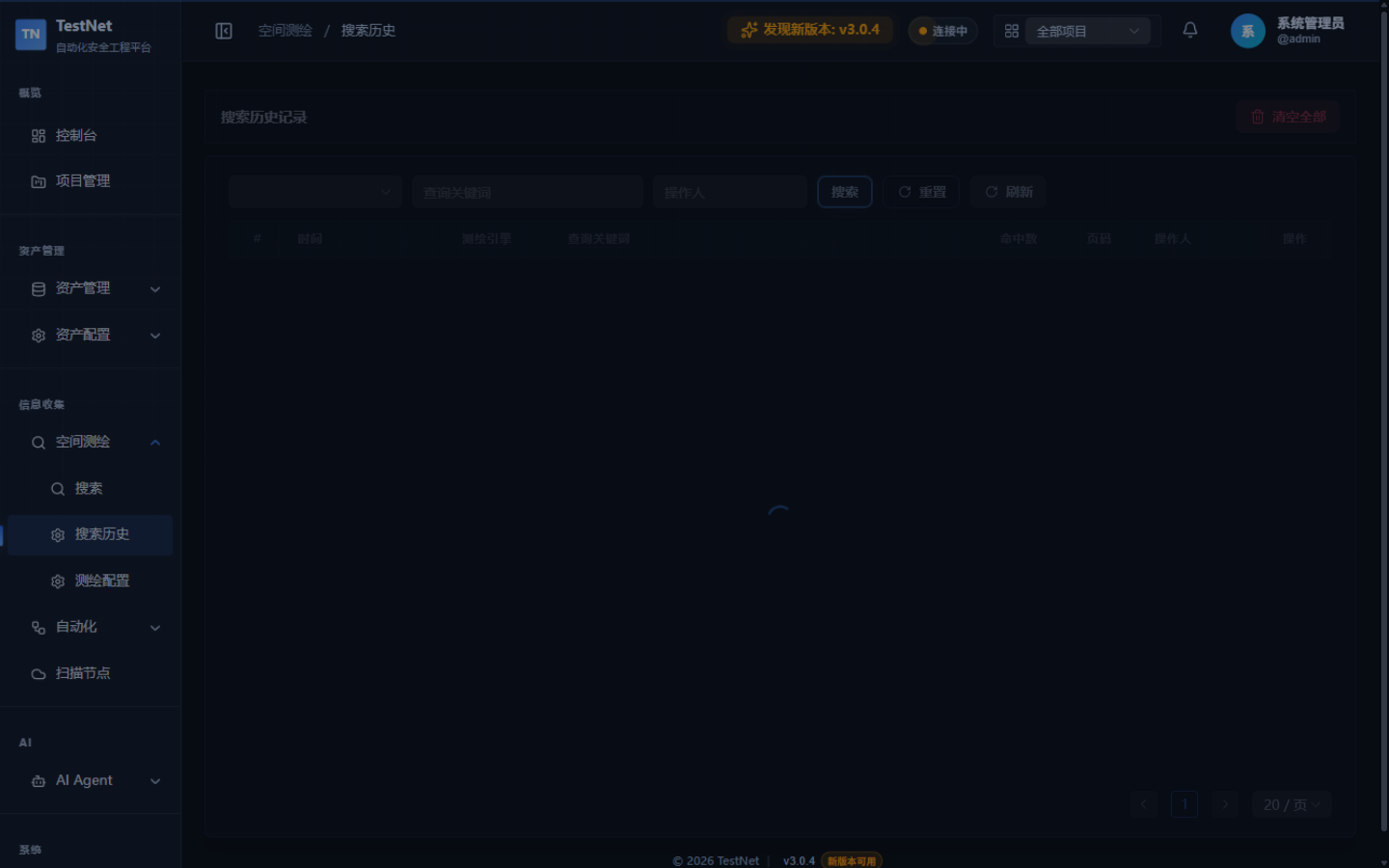
Every query is automatically recorded on the "Cyberspace Search → Search History" page for later review and replay:
- Query Replay: click a history entry to re-run the same engine and query syntax
- Result Reuse: import assets directly from historical results
- Cleanup: delete history entries you no longer need
Important Notes
Quota Consumption
- Each search consumes the corresponding engine's API quota
- Set a reasonable result count limit to avoid unnecessary quota usage
- Check remaining quota for each engine regularly
Compliance Notice
Ensure you only query and import asset information for authorized targets. Unauthorized scanning may violate laws and regulations.
Related Documentation
- Asset Management Overview — manage and filter ingested assets
- Asset Operations — advanced queries and batch actions