
Engagements
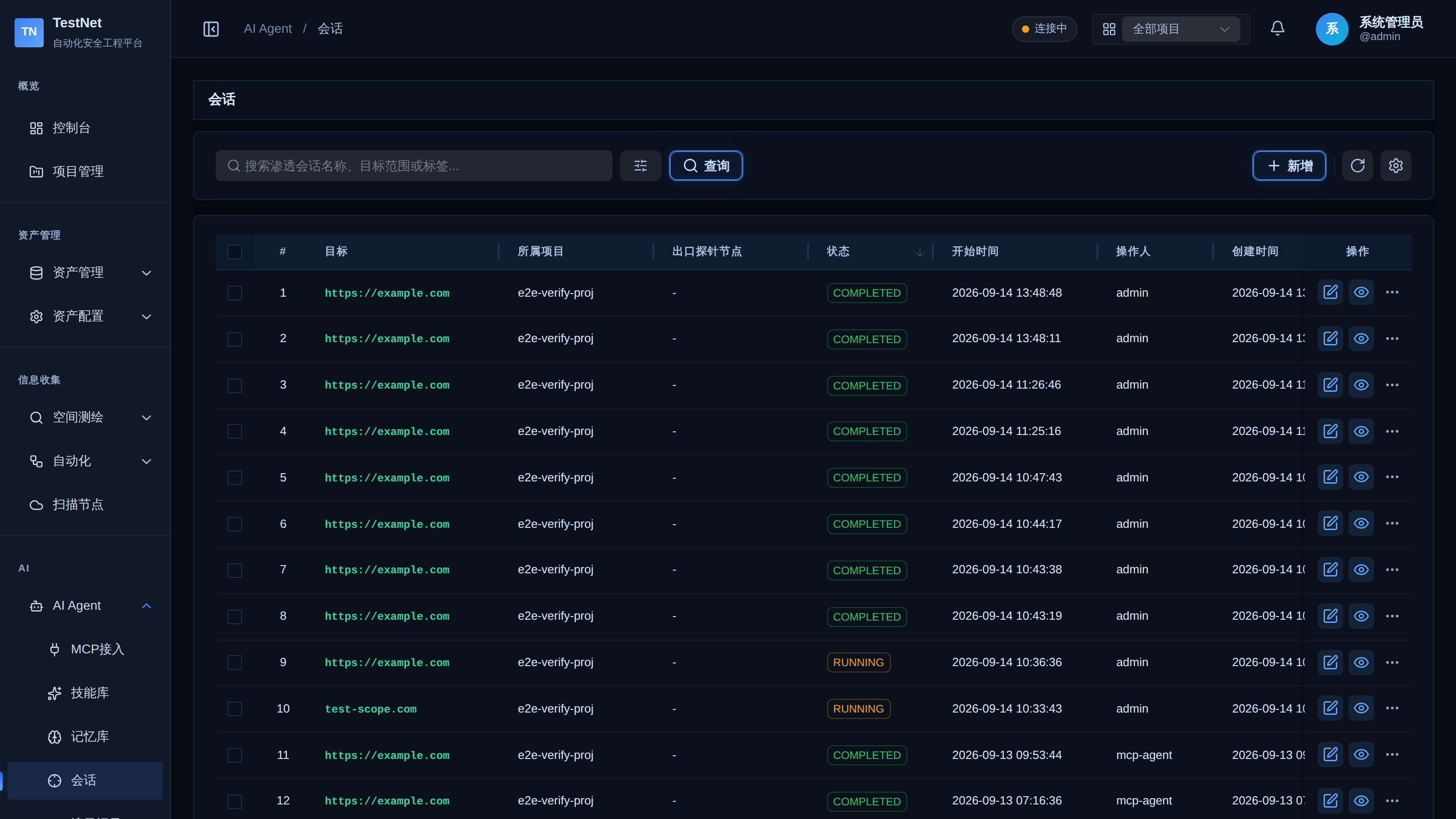
TestNet provides an industry-leading AI-Collaborative Penetration Testing Hub. Through Engagements, security practitioners and external AI agents (such as Claude, Cursor, and Windsurf) can conduct structured, goal-oriented penetration tests around defined targets and project scopes. TestNet records every step of the AI's reasoning chain, rationale, concrete actions, and resulting assets/vulnerabilities, ensuring 100% auditability, repeatability, and compliance.
Core Concepts
- Engagement: The top-level container for a penetration test, tied to a specific project context, primary target, and authorization scope.
- Decision Log (DecisionLog): Records the AI's or tester's decision target (Target), reasoning (Rationale), action (Action), testing phase (Phase), and newly discovered leads (New Leads) in a branching decision tree.
- Correlated Data: Every HTTP request made through the relay (HttpRecord), scanning task dispatched (Task), and vulnerability recorded is automatically tagged and linked to the active engagement.
Engagement Lifecycle Management
Navigate to "AI" → "Engagements" in the left sidebar.
1. Creating an Engagement
Click "New" in the top right corner and fill in:
- Project (Required): target project context (engagement data is strictly isolated within the project).
- Target (Required): the primary asset or URL, e.g.,
pay.example.comor192.168.10.0/24. - Exit Probe Node (Optional): the exit probe used for HTTP relay traffic in this engagement (direct connection by default).
- Scope: Authorized boundaries, supporting multi-line wildcards (e.g.,
*.example.com,!internal.example.com).
When creating engagements via MCP
testnet_blackboard(action="create_engagement"), you can also passname(engagement name) anddescription(stored in the engagement summary).
2. Status Transitions
RUNNING: Test is currently active. AI tool executions and HTTP relays are automatically logged under this engagement.COMPLETED: Test concluded and summary generated. Status is locked for post-engagement audits.ABORTED: Test was manually aborted; all recorded timeline entries are preserved but no new actions are accepted.
Detailed Engagement Workbench
Click any engagement name to open the Full Engagement Dashboard (EngagementDetail):
1. Decision Timeline
- Displays all decision nodes chronologically.
- Expand any entry to review:
- Decision Objective: What the AI intended to verify (e.g., Check for unauthenticated administrative endpoints).
- Technical Rationale: Previous scan findings or fingerprint cues justifying the step.
- Action: The concrete action recorded (e.g.,
testnet_http(action="relay"),testnet_access_control(action="matrix_test")). - New Leads: New leads or hypotheses produced by this step, expandable as child decisions on the blackboard.
2. HTTP Traffic Traces (Http Records)
- Lists all HTTP requests dispatched by AI agents during this assessment.
- Filter by status codes (200, 302, 403, 500) and HTTP methods (GET, POST).
- Inspect full request/response headers, sanitized body payloads, and side-by-side diff comparisons.
3. Vulnerability & Task Nodes on the Timeline
- New vulnerabilities (VUL) and dispatched scan tasks (TASK) appear as timeline nodes within the decision stream and can be filtered by type;
- Vulnerability nodes show the vulnerability name, tags, and target; task nodes show the task title, status, and target — click through to the task details for ANSI logs.
Working with External AI Agents
If you are using Claude Code, Cursor, or Windsurf, the agent can manage engagements end-to-end using the platform's MCP facade tools:
| Intent | MCP Facade Call | Example Arguments |
|---|---|---|
| Create Engagement | testnet_blackboard(action="create_engagement") | {"projectId": "proj_001", "targetInput": "https://api.test.com", "scope": "*.test.com", "description": "API auth audit"} |
| Log Decision | testnet_blackboard(action="log_decision") | {"projectId": "proj_001", "target": "https://api.test.com/users/export", "phase": "exploit", "rationale": "Found unauthenticated endpoint /users/export; verify IDOR"} |
| View Timeline | testnet_blackboard(action="get_engagement") | {"engagementId": "eng_abc123", "summary_only": false} |
| Complete Test | testnet_blackboard(action="end_engagement") | {"engagementId": "eng_abc123", "summary": "Audit finished. 1 critical IDOR discovered"} |
The legacy atomic names
testnet_create_engagement,testnet_log_decision, etc. remain backward-compatible and behave identically to their facade actions.
HAR & Report Export
After testing is complete, click "Export HAR" on the engagement detail page to download standard HAR 1.2 traffic archives for re-import into Burp Suite, or have the AI synthesize an executive assessment report.
Related Documentation
- HTTP Relay & Audit — relay traffic capture and response diffing within engagements
- Credentials — multi-identity credentials for authorization matrix testing
- MCP Overview — how AI Agents connect to TestNet
- AI Memory Management — cross-session retention of findings and conclusions