
Notification Center
TestNet provides three notification channels: in-app notifications, email, and Webhook, helping you stay informed about task execution status and system events.
In-App Notifications
Click the 🔔 bell icon in the top navigation bar:
- Unread badge: Shows the current unread notification count
- Notification list: Displays recent notification records
- Mark as read: Click a single notification or "Mark All Read"
- View all: Navigate to the notification management page for the full history
Notification Types
| Type | Event | Description |
|---|---|---|
| ✅ New Asset | NEW_ASSET | Workflow discovers a new asset |
| ⚠️ New Vulnerability | NEW_VUL | Scan discovers a new vulnerability |
| 🔴 Node Offline | NODE_OFFLINE | Scanning node heartbeat timeout |
| ❌ Task Failed | TASK_FAILED | Task execution failure |
| ✅ Task Completed | TASK_COMPLETED | Task execution completed successfully |
| ❌ Workflow Failed | WORKFLOW_FAILED | Workflow run failure |
| ✅ Workflow Completed | WORKFLOW_COMPLETED | Workflow run completed successfully |
| ❌ Test Failed | TEST_FAILED | Test case execution failure |
| ✅ Test Completed | TEST_COMPLETED | Test case execution completed |
System Alerts (Real-time WebSocket Push)
High-priority alerts (node offline, task failure, workflow failure, etc.) appear as real-time pop-up notices in the top-right corner.
Configure Email Notifications
Set Up Email Server
- Go to "System Management" → "System Settings" → "Email Configuration"
- Fill in the SMTP configuration:
- SMTP Server: e.g.,
smtp.gmail.com - Port:
465(SSL) or587(TLS) - Sender Email: Email address for sending notifications
- Username/Password: SMTP authentication credentials
- SMTP Server: e.g.,
- Click "Test Send" to verify configuration
- Save
Configure Notification Rules
Notification rules are configured under "Asset Management" → "Asset Config" → "Notification Rules" (reuses the asset configuration system, configType=NOTIFICATION):
- Go to "Asset Management" → "Asset Config" → "Notification Rules"
- Click "New" to create a notification rule
- Configure:
- Trigger Events: Workflow complete, task failed, node offline, etc.
- Channel: Email
- Recipients: Select users or enter email addresses manually
- Save
Configure Webhook Notifications
Webhooks can push notifications to DingTalk, Lark, custom systems, and more.
Set Up Webhook
- Go to "Asset Management" → "Asset Config" → "Notification Rules"
- Click "New" to create a notification rule
- Select "Webhook" as the notification channel
- Enter the Webhook URL
- Select trigger events
- Save
Common Webhook Examples
text
https://oapi.dingtalk.com/robot/send?access_token=YOUR_TOKENtext
https://open.feishu.cn/open-apis/bot/v2/hook/YOUR_TOKENtext
https://qyapi.weixin.qq.com/cgi-bin/webhook/send?key=YOUR_KEYNotification History
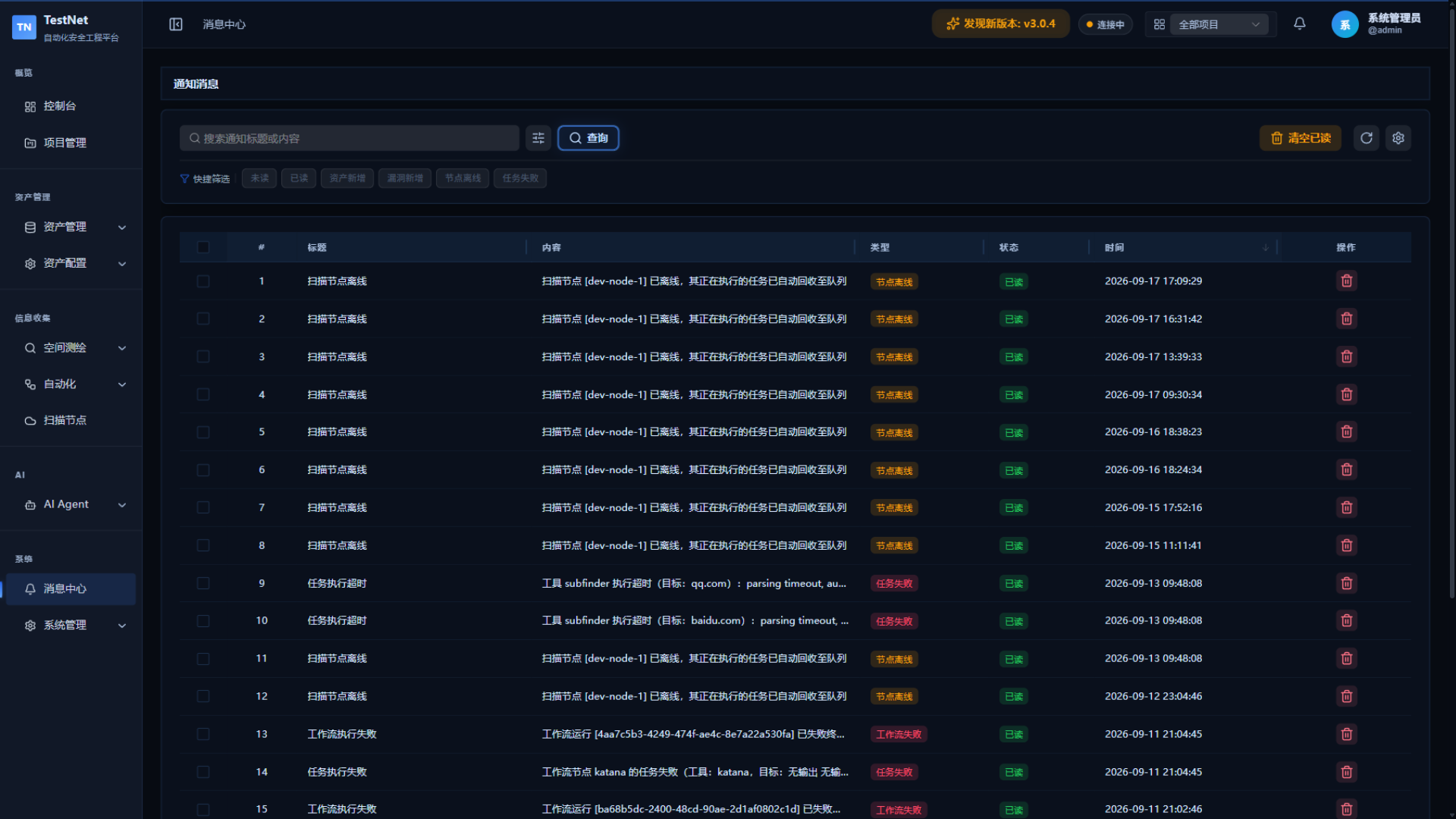
Go to "Message Center" (/notification) under the "System" menu to view all historical notifications:
- Filter by type (new asset, new vulnerability, node offline, etc.)
- Filter by date range
- View notification details and delivery status (success/failed)
- Bulk delete historical notifications
Related Documentation
- System Configuration — SMTP mail server setup
- Asset Tagging & Smart Rules — where notification rules are configured